A character relationship graph gives us a way to explore the Marvel Cinematic Universe through its people: who is connected to Tony Stark, which relationships represent friendship or family, and how characters link different films together.
The process has four parts: retrieve the relationship data with Python, install and start Neo4j, prepare the CSV files, and import them into a graph that we can visualize and query.
1. Retrieve the character and relationship data
1.1 Explore the Marvel interactive
The data comes from The Straits Times’ Marvel interactive. It presents characters, their connections, and the films in which they appear.
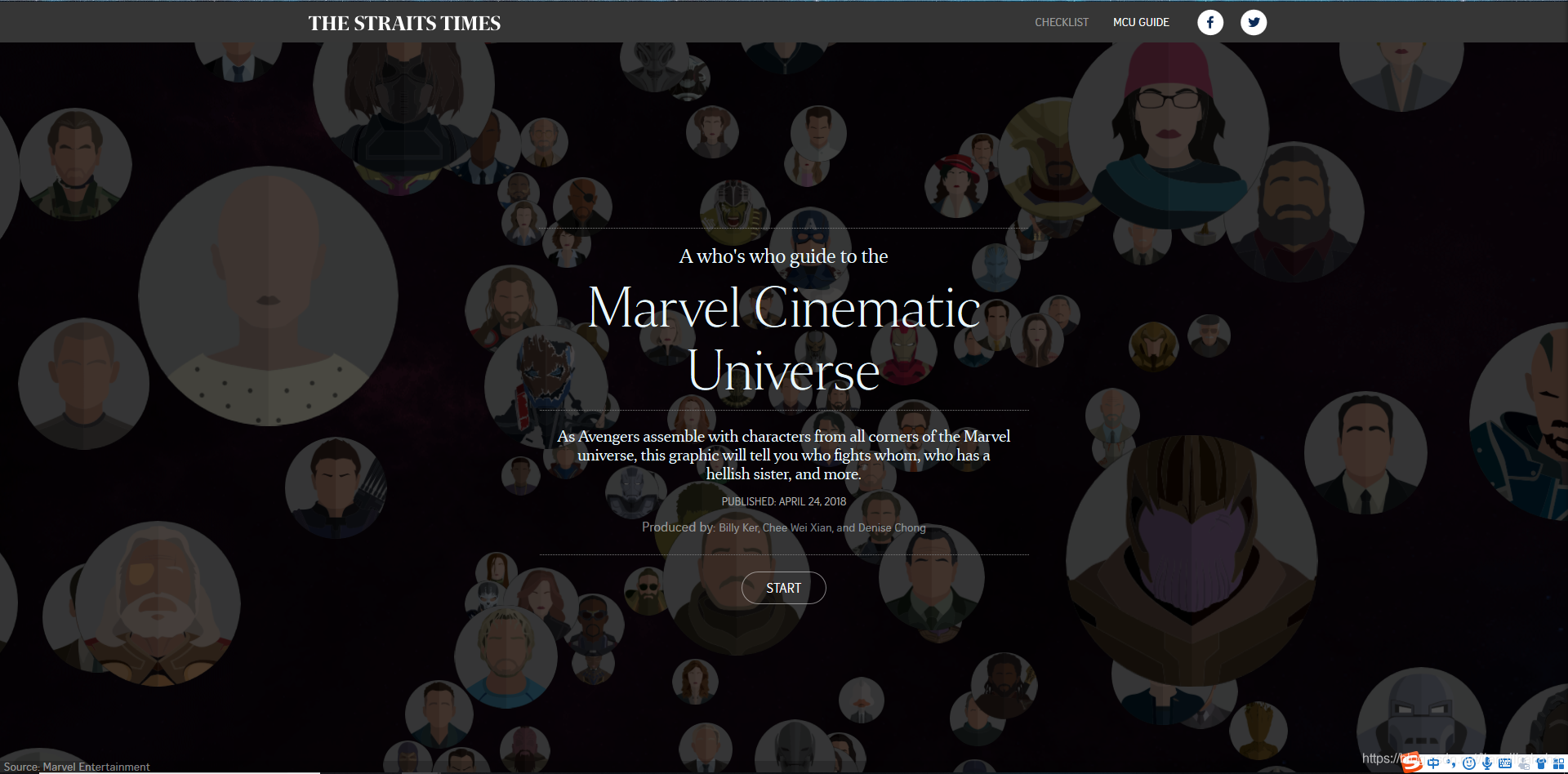
The landing page provides an overview of the graph:
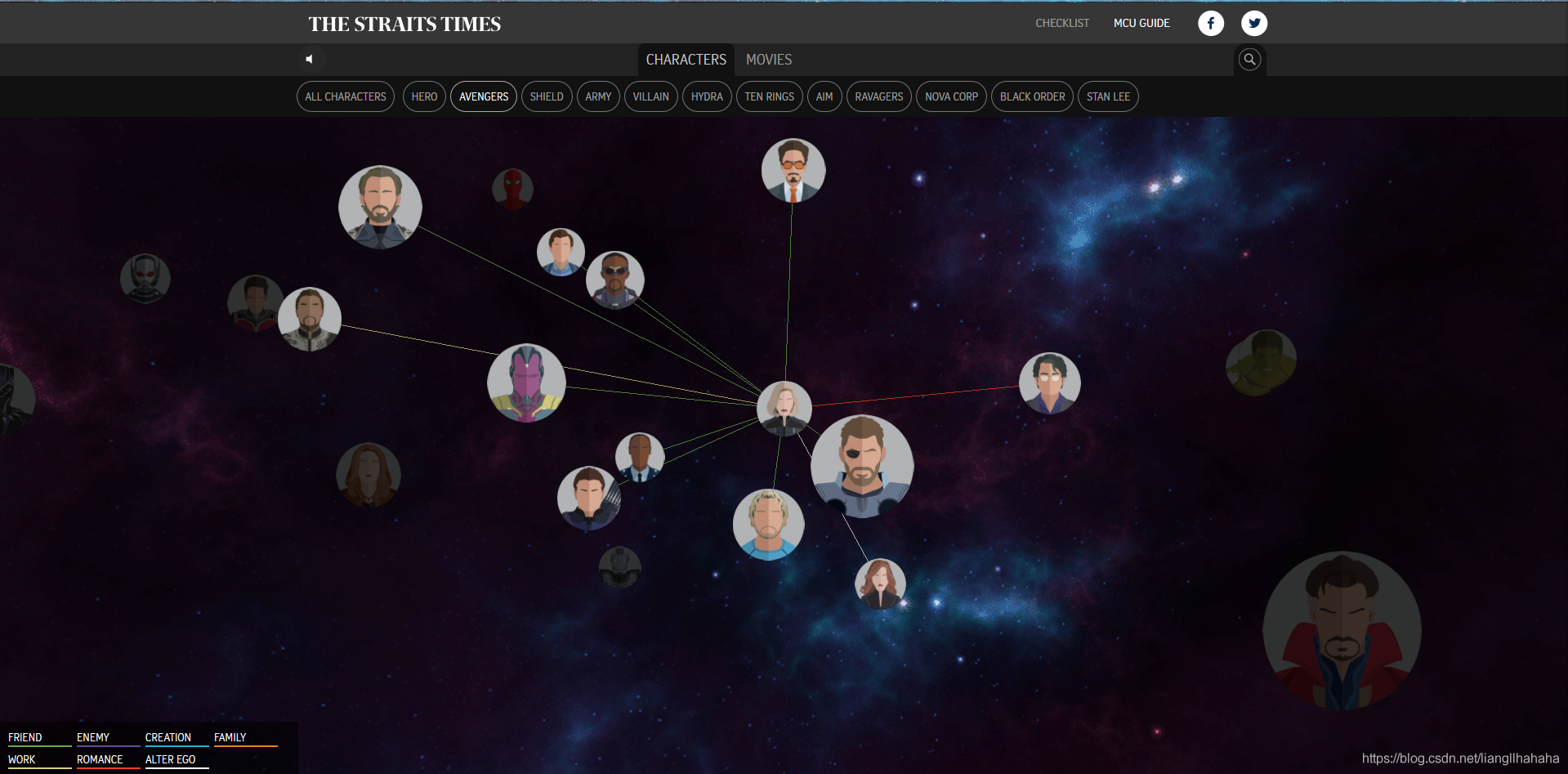
Selecting a character reveals their relationships:
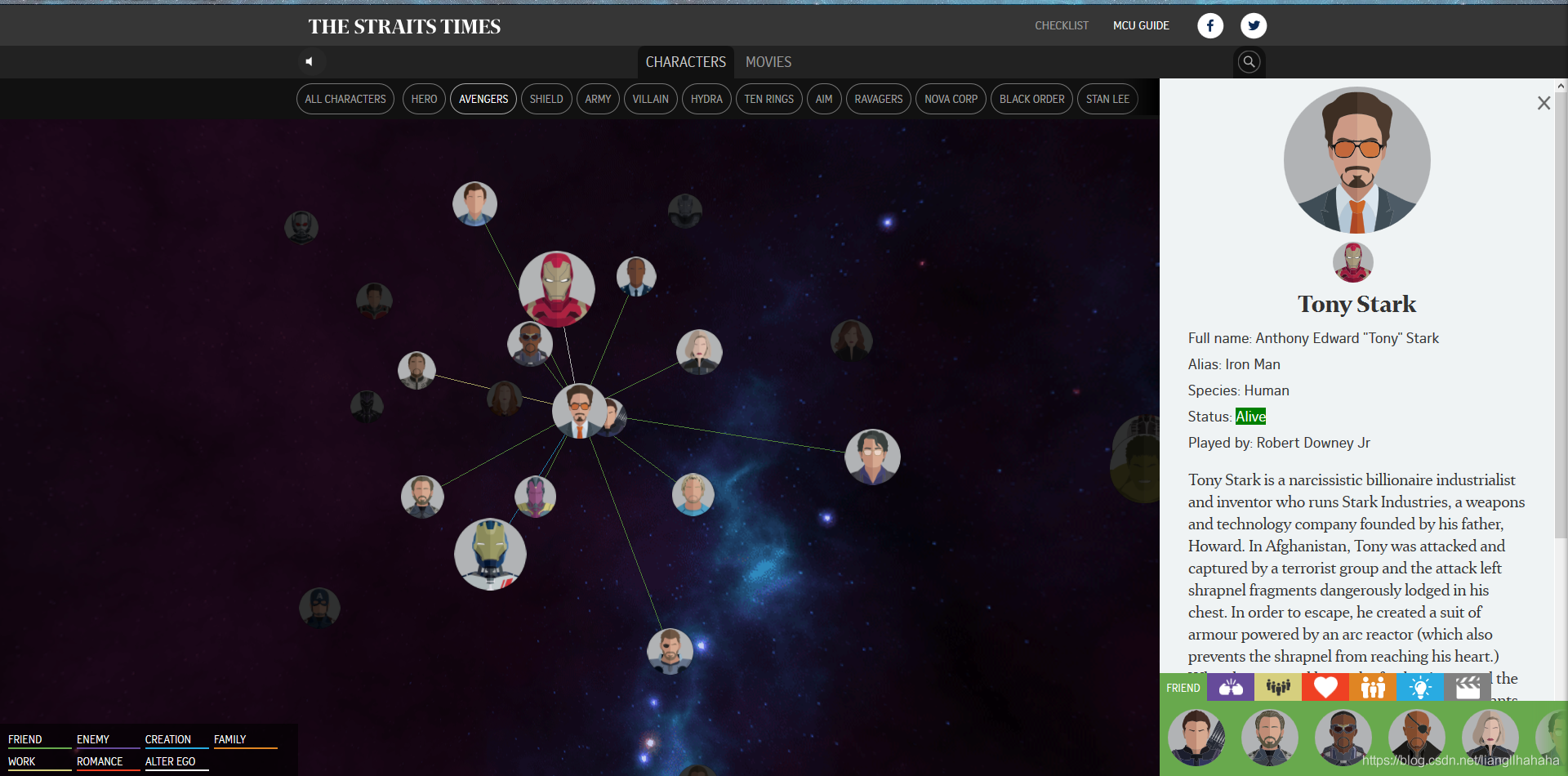
A character’s portrait opens more details. Here is Iron Man:
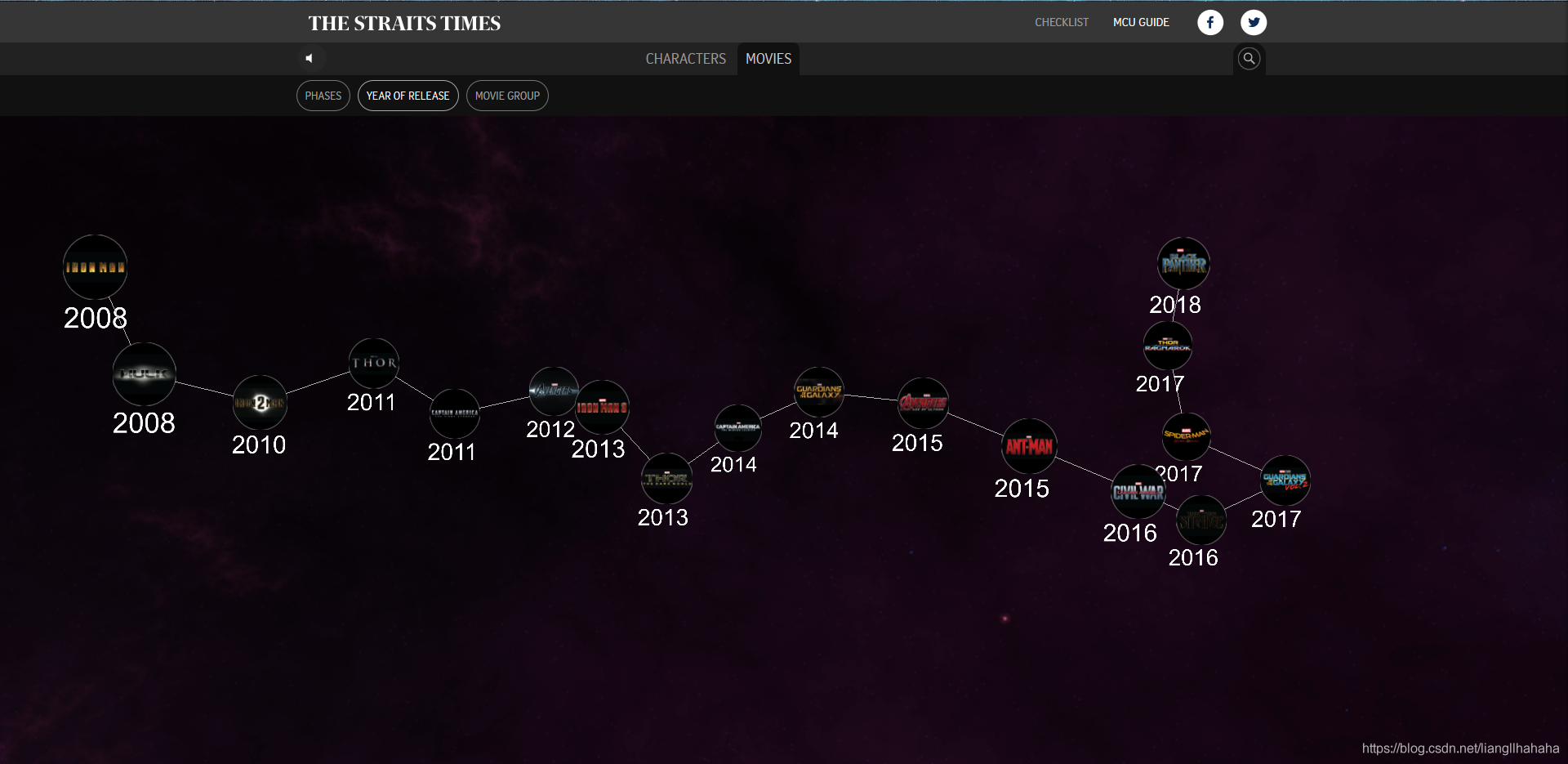
The interactive also includes a view of the Marvel films:
The CSV dataset on GitHub is an alternative when the interactive or its data endpoint is unavailable. Those files can be used directly in the import steps below after checking their headers.
1.2 Find the JSON request
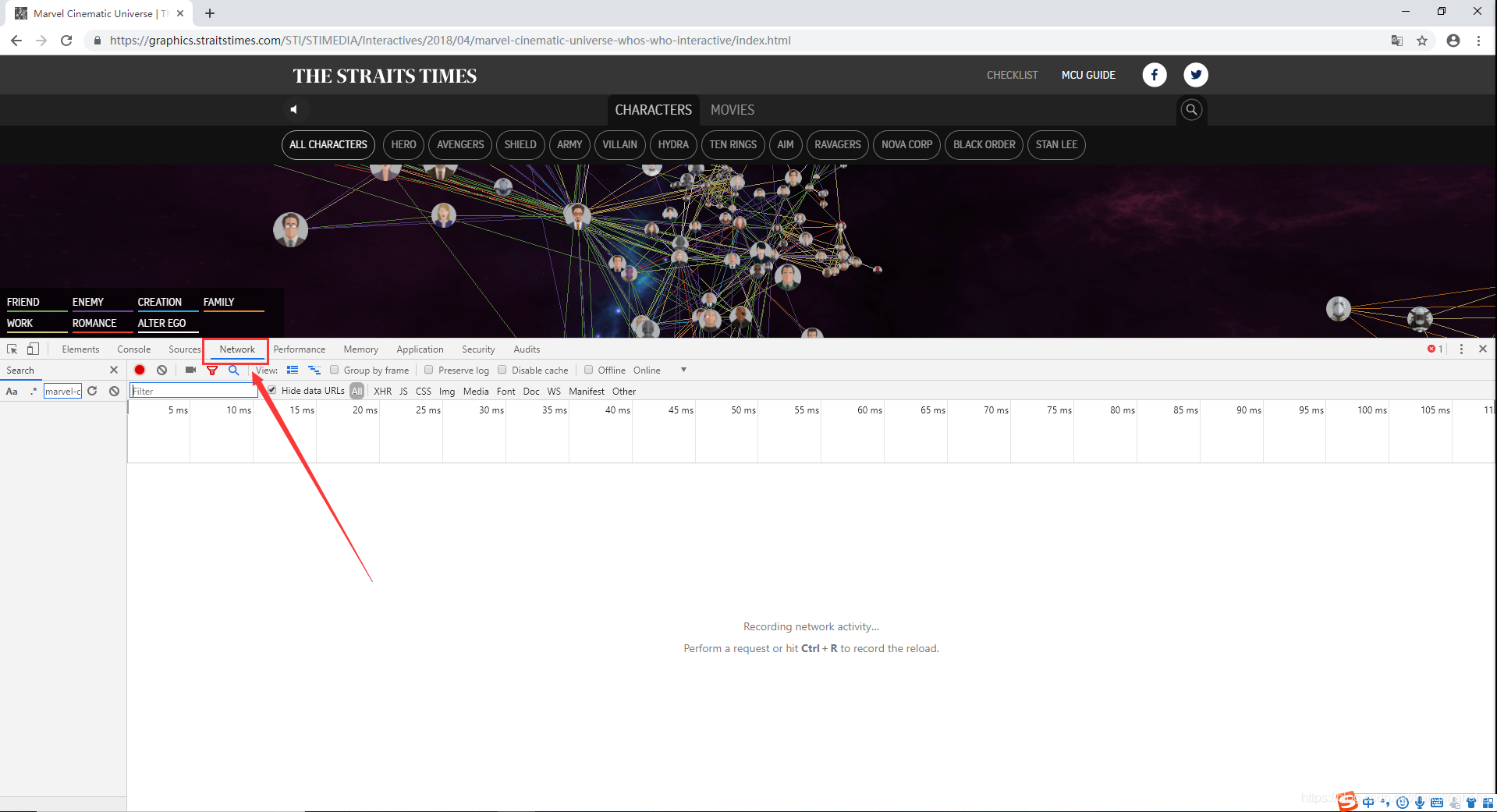
Open the interactive in Chrome, then open Developer Tools with F12. Select Network and reload the landing page so that its data requests appear.
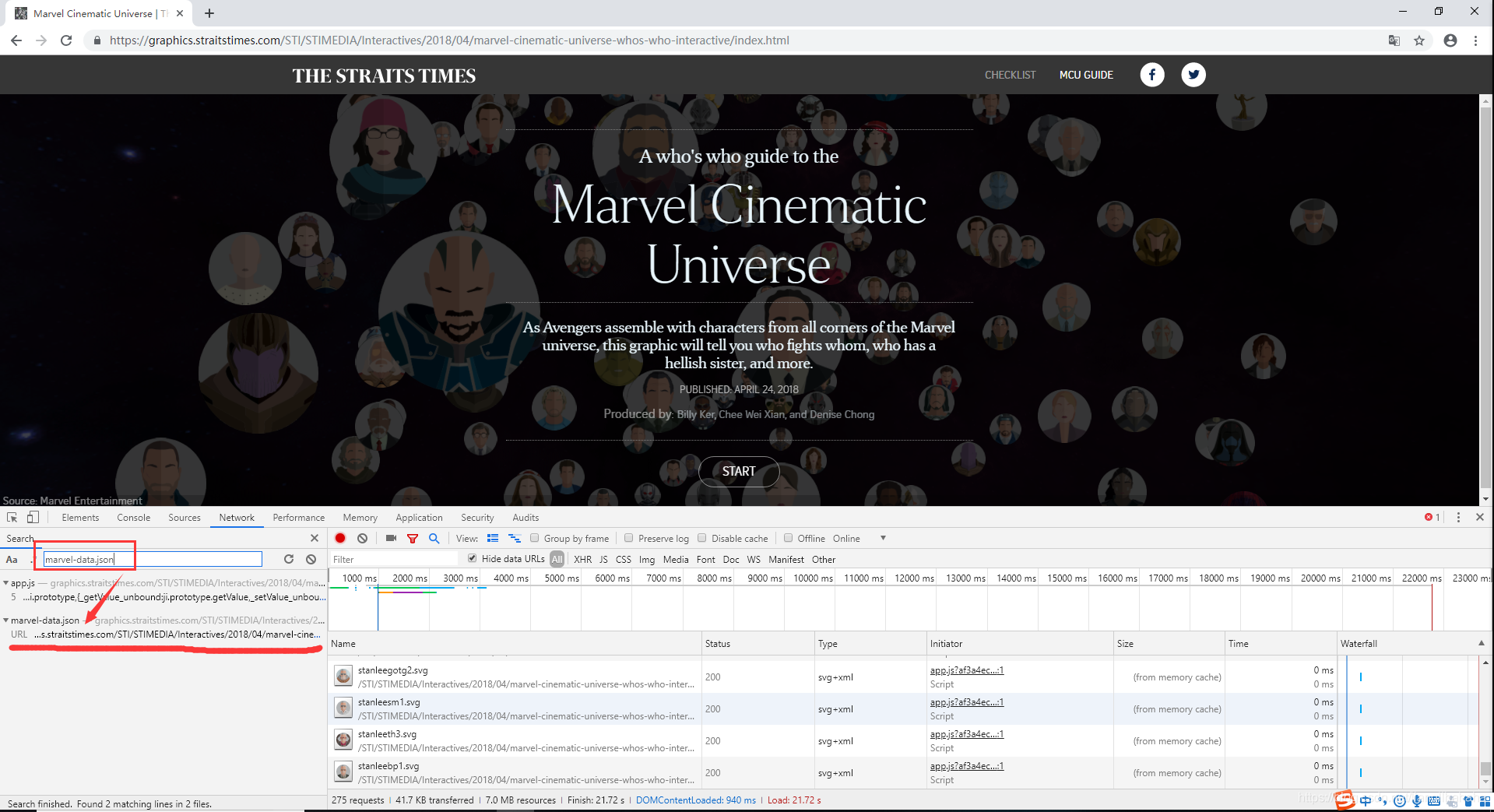
Search the requests for marvel-data.json:
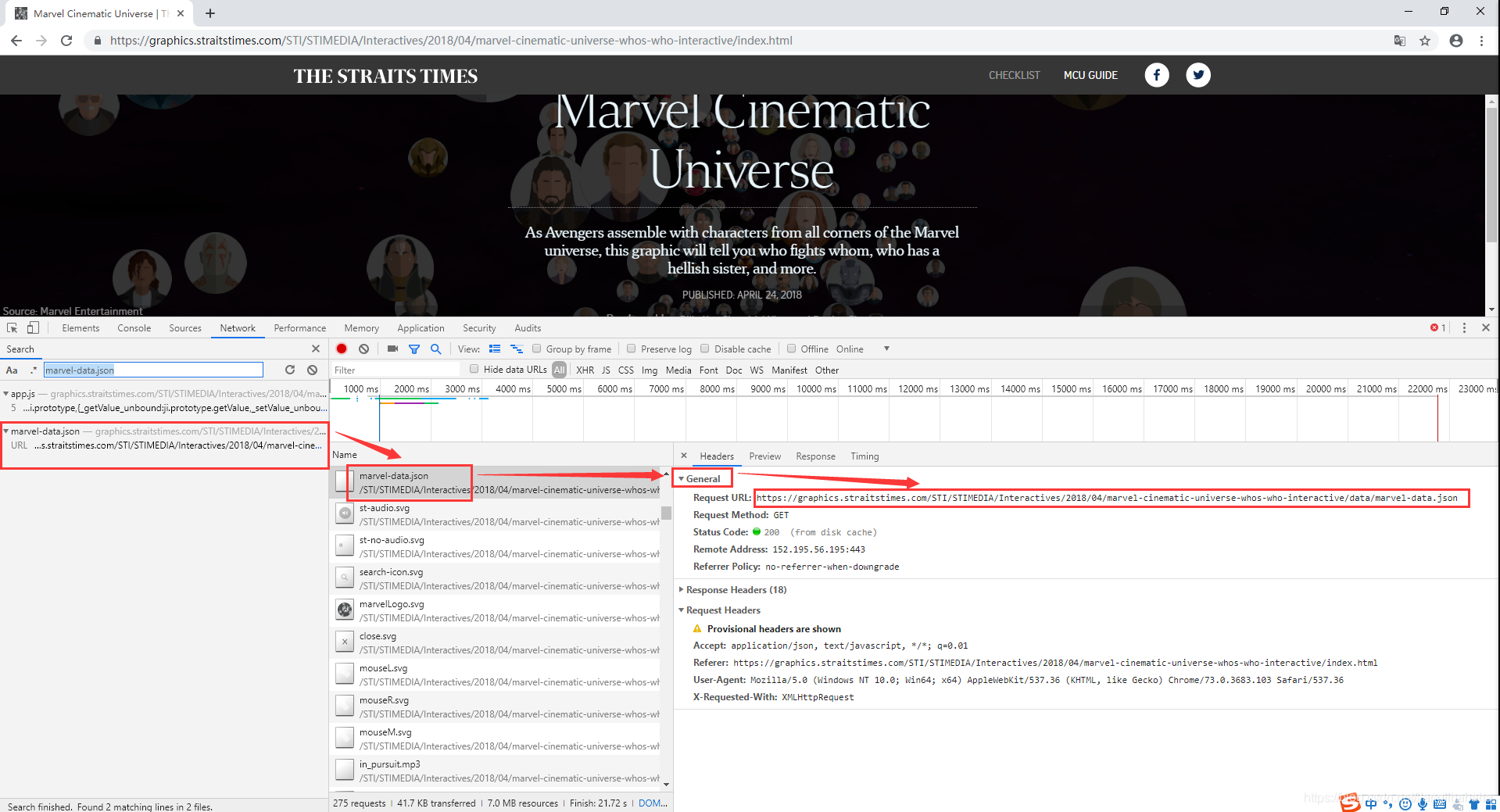
Open that request and copy its request URL:
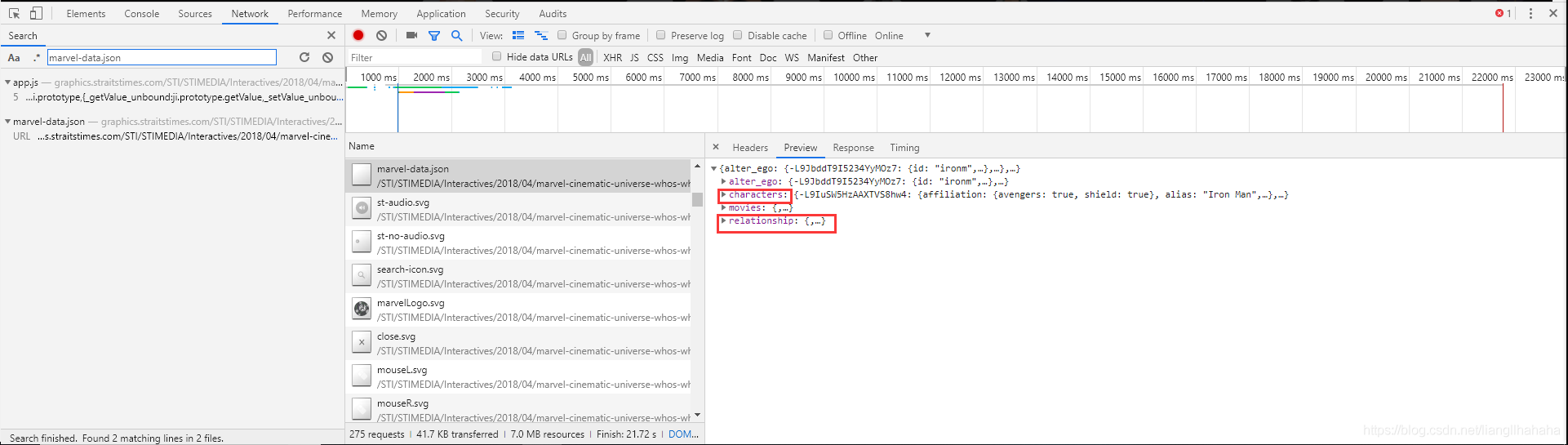
The two collections we need are characters and relationship. A relationship record identifies its source character, target character, and relationship category.
1.3 Export the data with Python
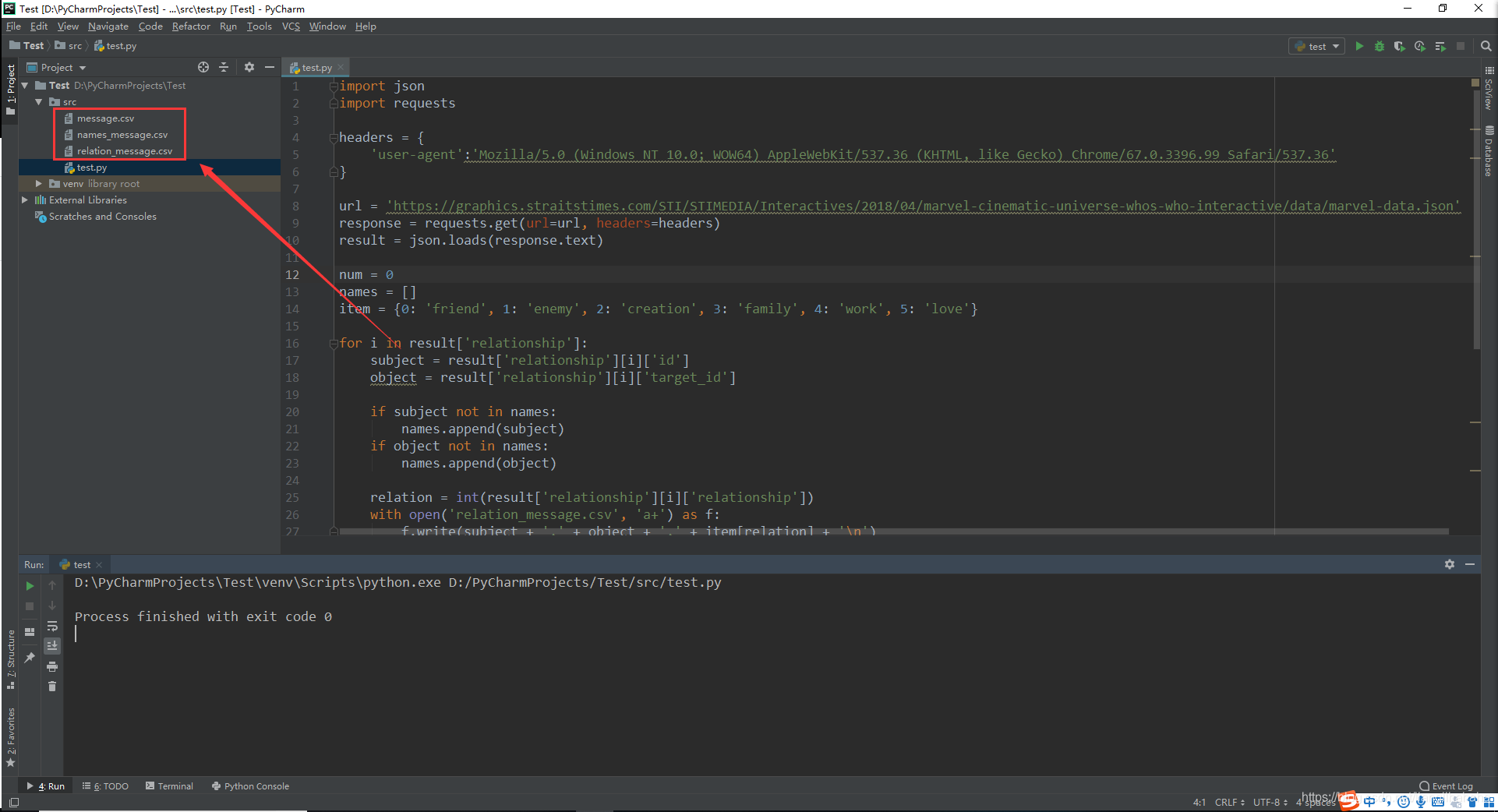
Use Python 3. The script below accepts either the copied URL or a locally saved JSON file. It writes the same three kinds of CSV needed for the graph:
| File | Header | Contents |
|---|---|---|
names_message.csv |
name,id |
Character keys referenced by relationships, with local numeric IDs |
relation_message.csv |
subject,object,relation |
Source key, target key, and relationship category |
message.csv |
id,name,status,species |
Character metadata, including display names |
In names_message.csv, name is the source key, such as tonys, rather than a full display name. The import queries use that key to join relationship endpoints. The numeric id is a local identifier for this dataset.
The relationship codes map to friend, enemy, creation, family, work, and love. CSV output uses Python’s csv module so that punctuation in names is escaped correctly. Opening the output files in write mode prevents a second export from appending another copy of every record.
"""Fetch or read Marvel JSON and export the three CSV files used by Neo4j."""
import argparse
import csv
import json
from pathlib import Path
from urllib.request import Request, urlopen

KINDS = {0: "friend", 1: "enemy", 2: "creation", 3: "family", 4: "work", 5: "love"}


def records(value):
    if isinstance(value, dict):
        return value.values()
    if isinstance(value, list):
        return value
    raise ValueError("Expected a record collection")


def character_key(value):
    if not isinstance(value, str) or not value.strip():
        raise ValueError("A character key must be a nonempty string")
    return value.strip()


def prepare_rows(data):
    characters = {}
    for item in records(data["characters"]):
        key = character_key(item["id"])
        if key in characters:
            raise ValueError(f"Duplicate character key: {key}")
        characters[key] = item

    relationships, used = [], set()
    for item in records(data["relationship"]):
        source = character_key(item["id"])
        target = character_key(item["target_id"])
        if source not in characters or target not in characters:
            raise ValueError(f"Unknown endpoint: {source} -> {target}")
        raw_kind = str(item["relationship"])
        if raw_kind not in {str(key) for key in KINDS}:
            raise ValueError(f"Unsupported relationship code: {raw_kind}")
        relationships.append((source, target, KINDS[int(raw_kind)]))
        used.update((source, target))

    names = [(key, index) for index, key in enumerate(sorted(used), start=1)]
    messages = [
        (key, item.get("name") or "", item.get("status") or "", item.get("species") or "")
        for key, item in sorted(characters.items())
    ]
    return names, relationships, messages


def write_csv(path, header, rows):
    with path.open("w", encoding="utf-8", newline="") as stream:
        writer = csv.writer(stream)
        writer.writerow(header)
        writer.writerows(rows)


def main():
    parser = argparse.ArgumentParser(description=__doc__)
    source = parser.add_mutually_exclusive_group(required=True)
    source.add_argument("--url")
    source.add_argument("--input", type=Path)
    parser.add_argument("--output", type=Path, default=Path("prepared"))
    args = parser.parse_args()
    if args.url:
        request = Request(args.url, headers={"User-Agent": "MarvelGraphTutorial/1.0"})
        with urlopen(request, timeout=30) as response:
            raw = response.read().decode("utf-8-sig")
    else:
        raw = args.input.read_text(encoding="utf-8-sig")
    names, relations, messages = prepare_rows(json.loads(raw))
    args.output.mkdir(parents=True, exist_ok=True)
    (args.output / "marvel-data.json").write_text(raw, encoding="utf-8")
    write_csv(args.output / "names_message.csv", ["name", "id"], names)
    write_csv(args.output / "relation_message.csv", ["subject", "object", "relation"], relations)
    write_csv(args.output / "message.csv", ["id", "name", "status", "species"], messages)
    print(f"Exported {len(names)} referenced characters and {len(relations)} relationships")


if __name__ == "__main__":
    main()
Save this as export_marvel_csv.py, or download the complete script. To fetch the JSON, pass the URL copied from Network:
python3 export_marvel_csv.py --url "https://graphics.straitstimes.com/STI/STIMEDIA/Interactives/2018/04/marvel-cinematic-universe-whos-who-interactive/data/marvel-data.json" --output prepared
If the JSON is already saved locally, run:
python3 export_marvel_csv.py --input marvel-data.json --output prepared
An HTTP error means the remote request failed; it is not a successful empty dataset. Use the archived CSV files if the endpoint no longer serves the JSON. The exporter checks relationship endpoints before writing the files and keeps the fetched JSON alongside them for inspection.
The three CSV outputs appear in the destination directory:
2. Install Neo4j and start the database
2.1 Download and extract Neo4j
Download the Windows ZIP distribution from the Neo4j Deployment Center. Check the Java requirements for the release you select before starting the database. The Windows installation guide covers the supported setup.
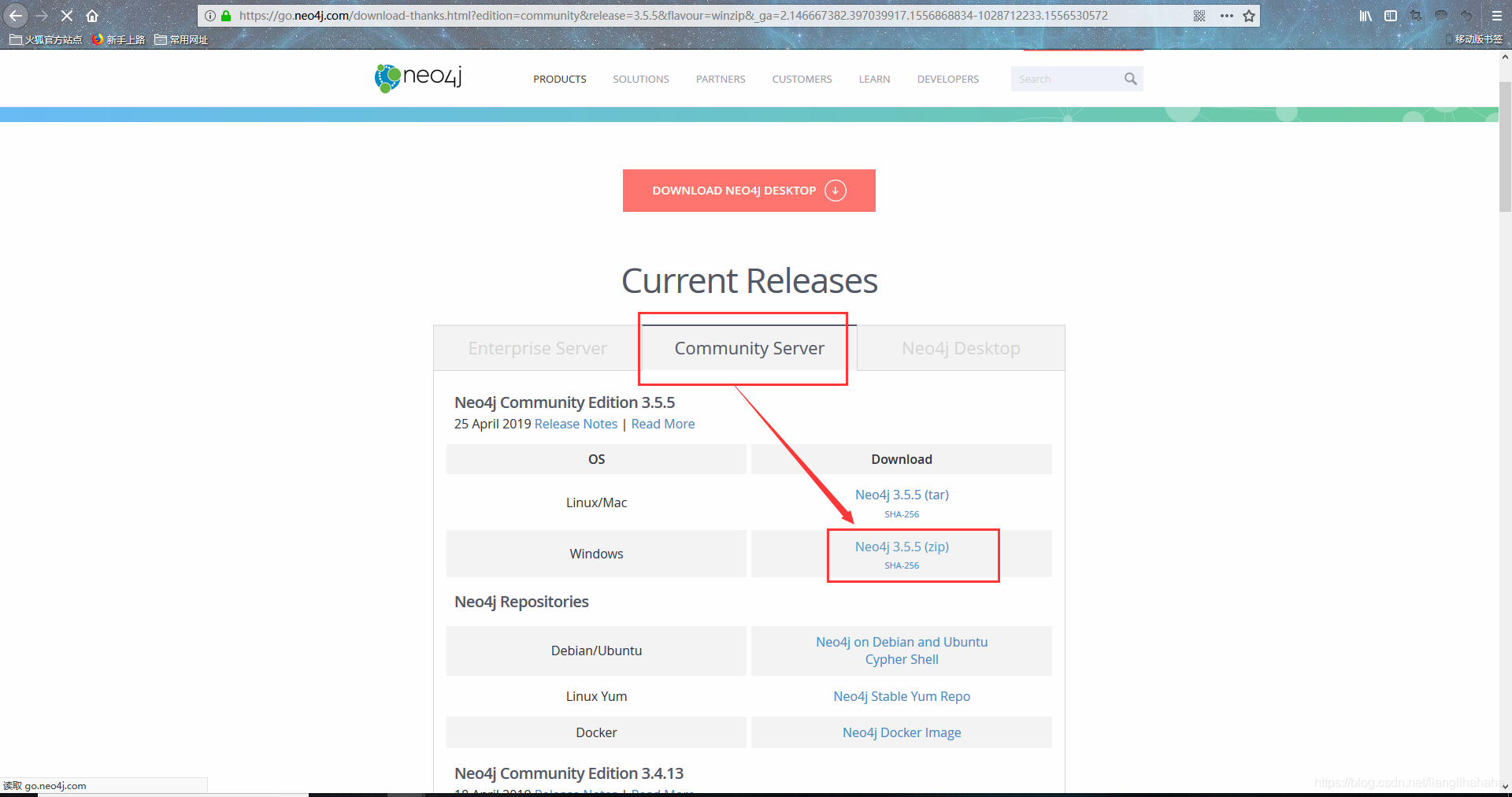
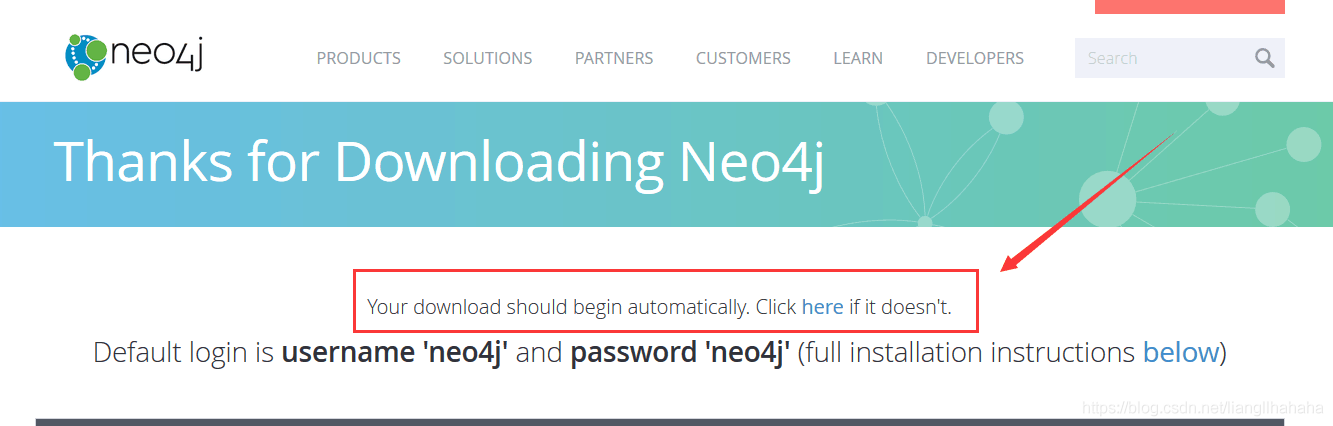
If the download does not start automatically, follow the download link on the release page:
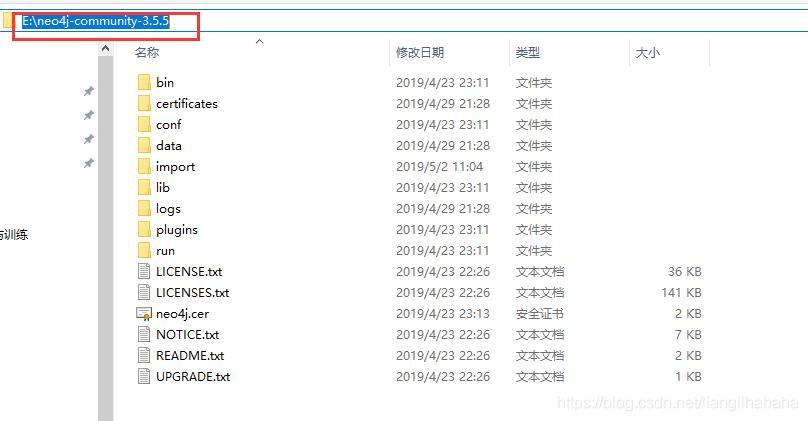
Extract the archive to a permanent directory. A simple path such as C:\neo4j\neo4j-<version> makes shell commands easier to work with. Quote paths when necessary; spaces or non-ASCII characters are not, by themselves, a universal restriction on Neo4j installations.
2.2 Start Neo4j on Windows
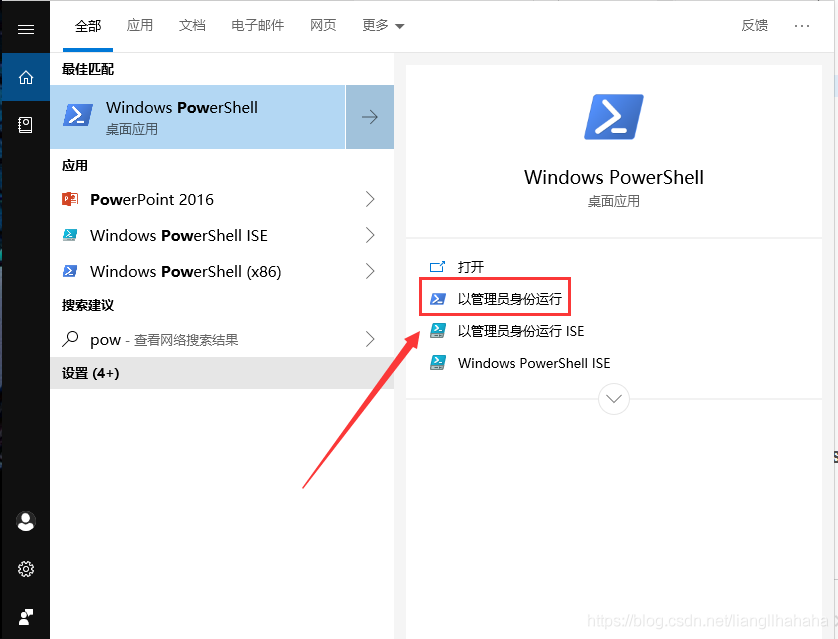
Open PowerShell and change to the extracted Neo4j directory. Use an elevated prompt when installing a Windows service or when the distribution’s instructions require it.
For a ZIP distribution with the Neo4j command-line launcher, start the database in the foreground:
cd 'C:\neo4j\neo4j-<version>'
.\bin\neo4j console
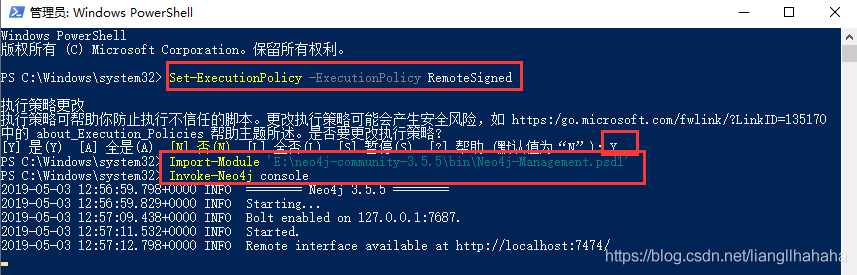
Distributions that provide Neo4j-Management.psd1 can also use the PowerShell management module:
Import-Module 'C:\neo4j\neo4j-<version>\bin\Neo4j-Management.psd1'
Invoke-Neo4j console
If PowerShell blocks the module under the machine’s execution policy, the following command allows signed or locally created scripts for the current process, where permitted by organizational policy:
Set-ExecutionPolicy -Scope Process -ExecutionPolicy RemoteSigned
Use the startup method supported by the installed release. Keep the console open while the database is running.
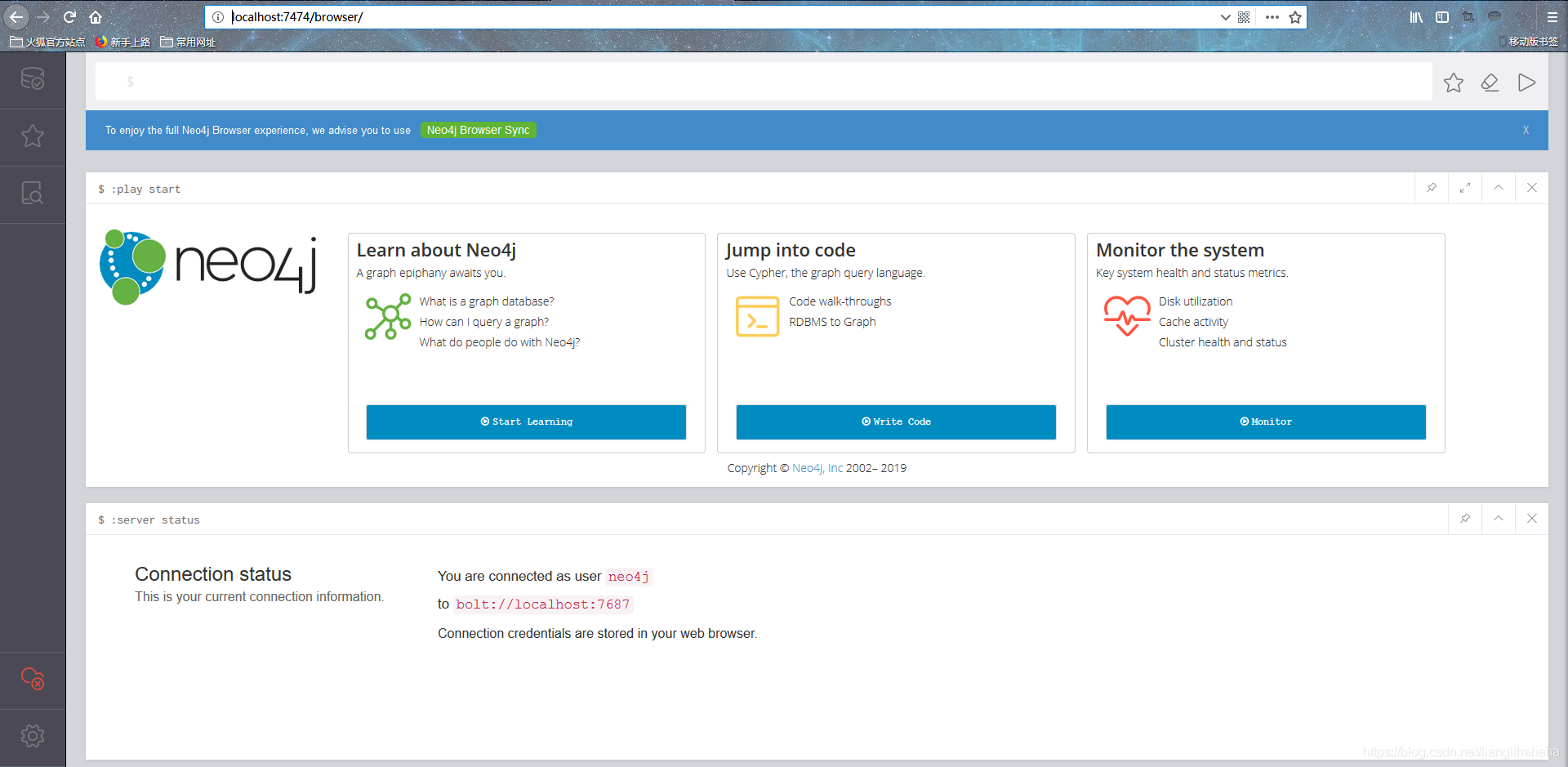
Open Neo4j Browser at:
http://localhost:7474
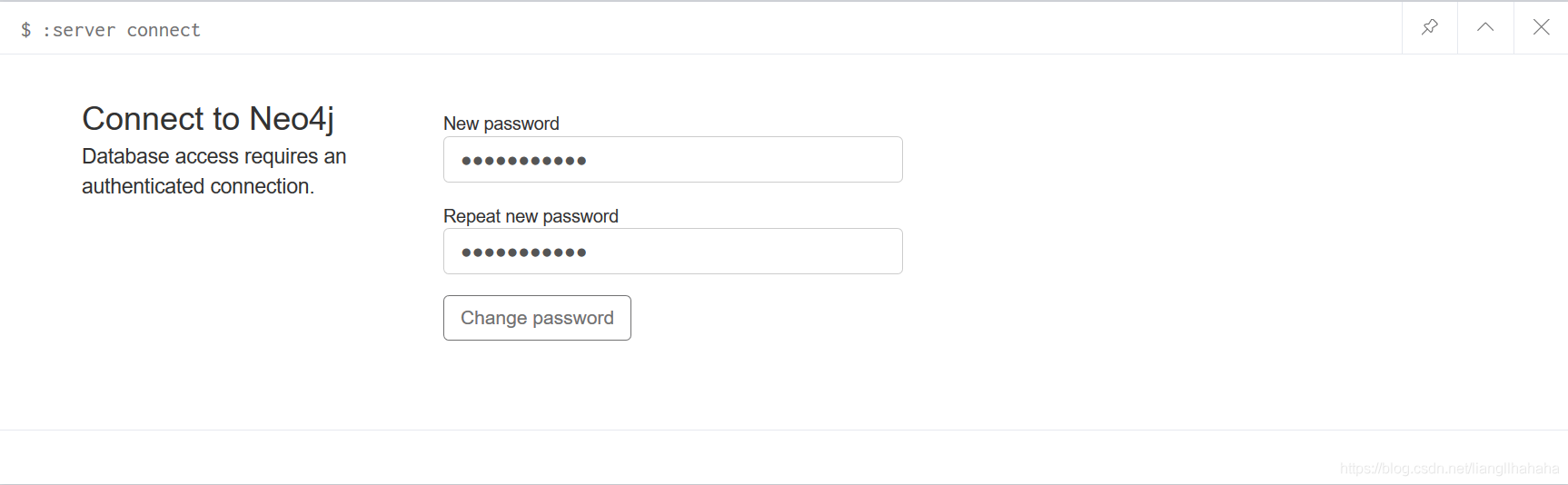
For a fresh local installation using the default credentials, sign in as neo4j with password neo4j:
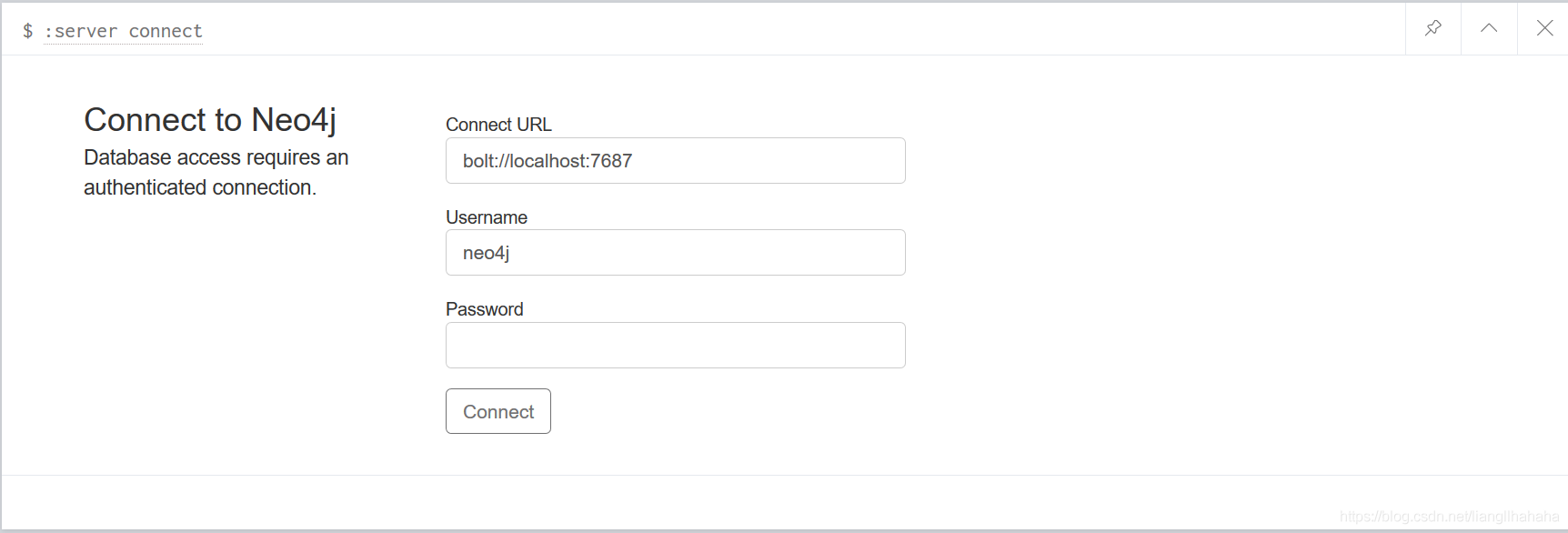
Set a new password when prompted. An installation with credentials configured in advance uses those credentials instead.
3. Prepare the CSV files for import
3.1 Check the headers
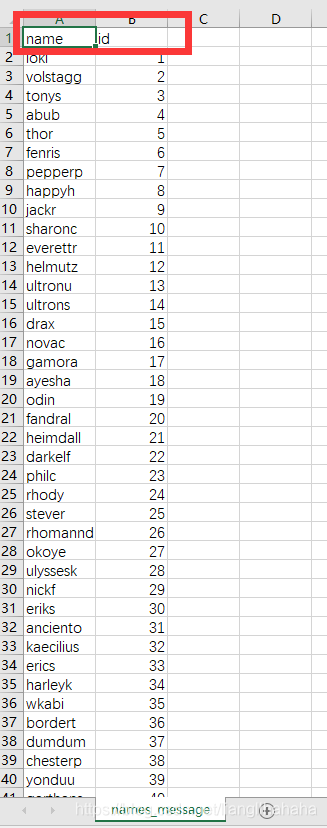
LOAD CSV WITH HEADERS uses the first row to name each column. The exported files already include their headers. If using previously downloaded files, check the first row before importing; do not add a second header to a file that already has one.
For names_message.csv, the columns must be name,id:
For relation_message.csv, they must be subject,object,relation:
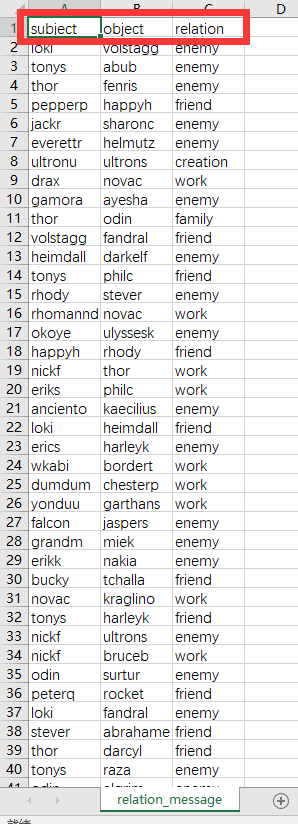
Make sure the relationship keys exist in the character file and that the files are saved as UTF-8. message.csv contains descriptive metadata; the basic graph below only needs the first two files.
3.2 Copy the files into Neo4j’s import directory
Copy the CSV files into the local database’s configured import directory:
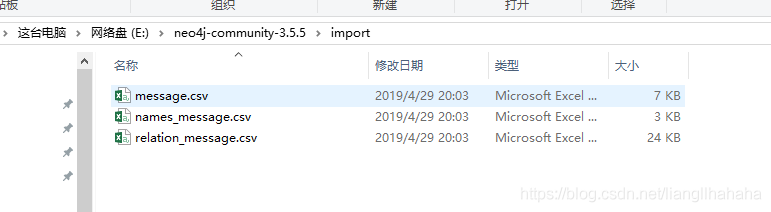
A Cypher URL such as file:///names_message.csv is resolved by the database server relative to that import directory, not relative to the browser or the Python working directory. Local file loading must be enabled for the installation; it is not available on Aura. See the LOAD CSV documentation for the relevant file-access rules.
4. Import and visualize the graph
4.1 Create the character nodes
Run the following query in Neo4j Browser, using an empty project database:
LOAD CSV WITH HEADERS FROM 'file:///names_message.csv' AS data
CREATE (:people {name: data.name, id: toInteger(data.id)});
Each row creates a people node. Its name property holds the character key used by the relationship file.
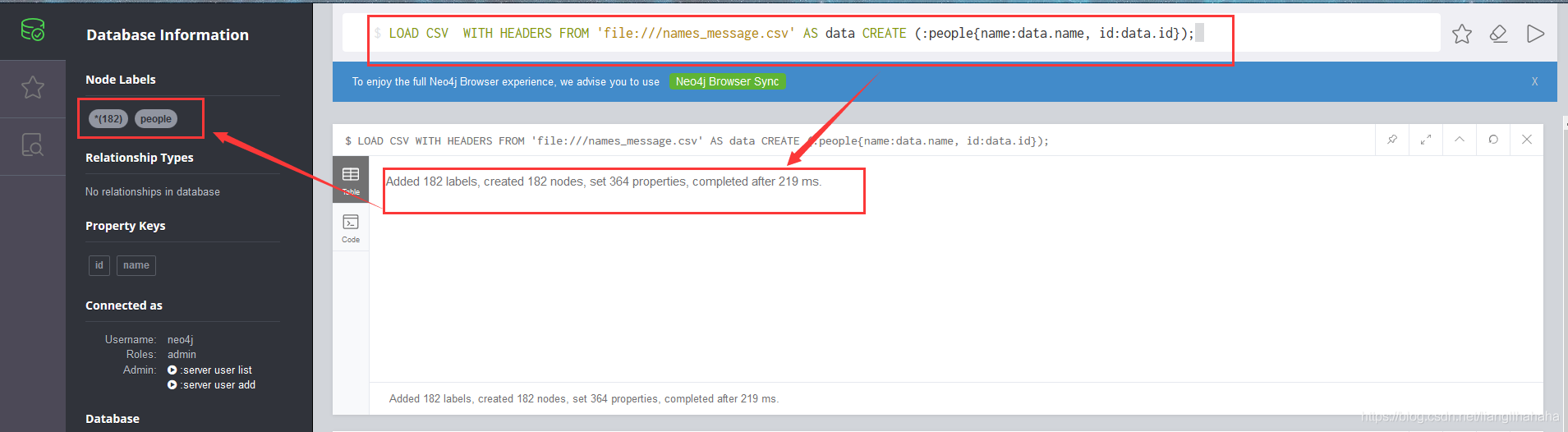
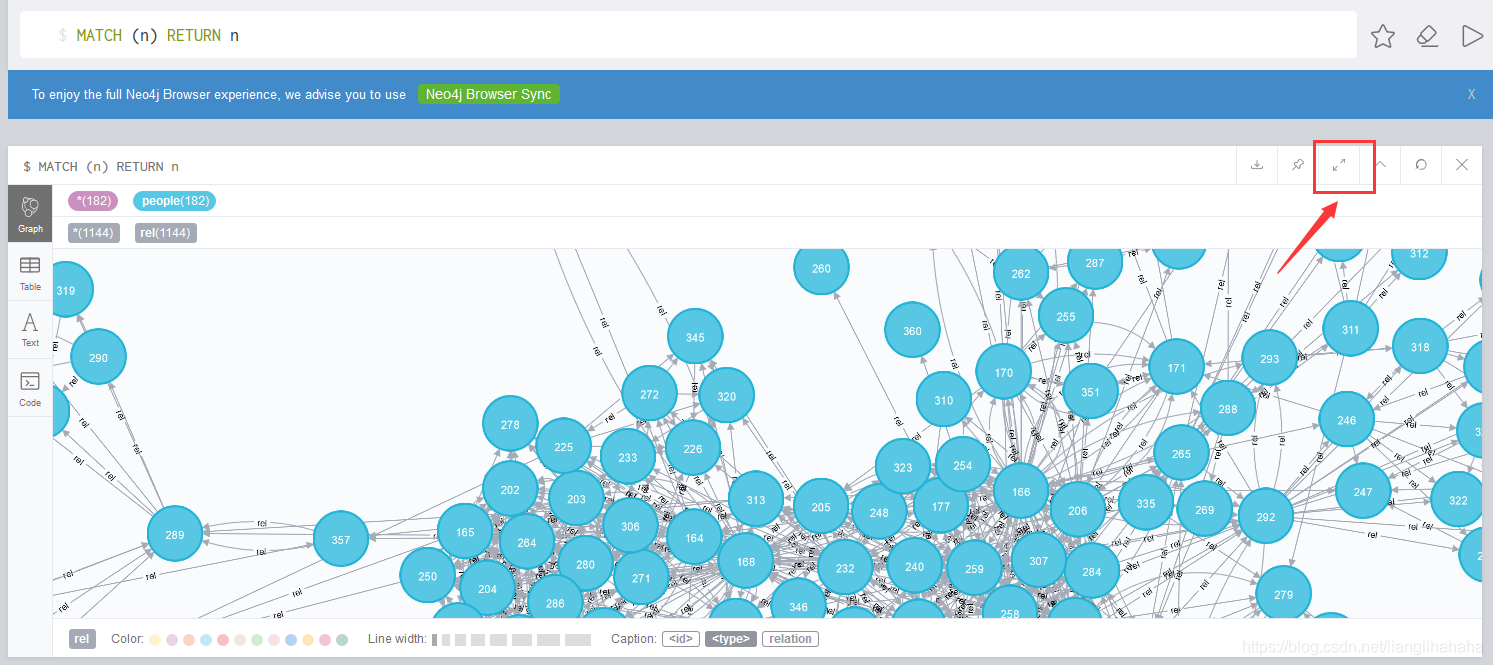
The dataset shown in these screenshots created 182 character nodes. A different dataset should be checked against its own CSV row count.
4.2 Create the relationships
Match each endpoint by its character key, then create a directed relationship:
LOAD CSV WITH HEADERS FROM 'file:///relation_message.csv' AS relations
MATCH (source:people {name: relations.subject})
MATCH (target:people {name: relations.object})
CREATE (source)-[:rel {relation: relations.relation}]->(target);
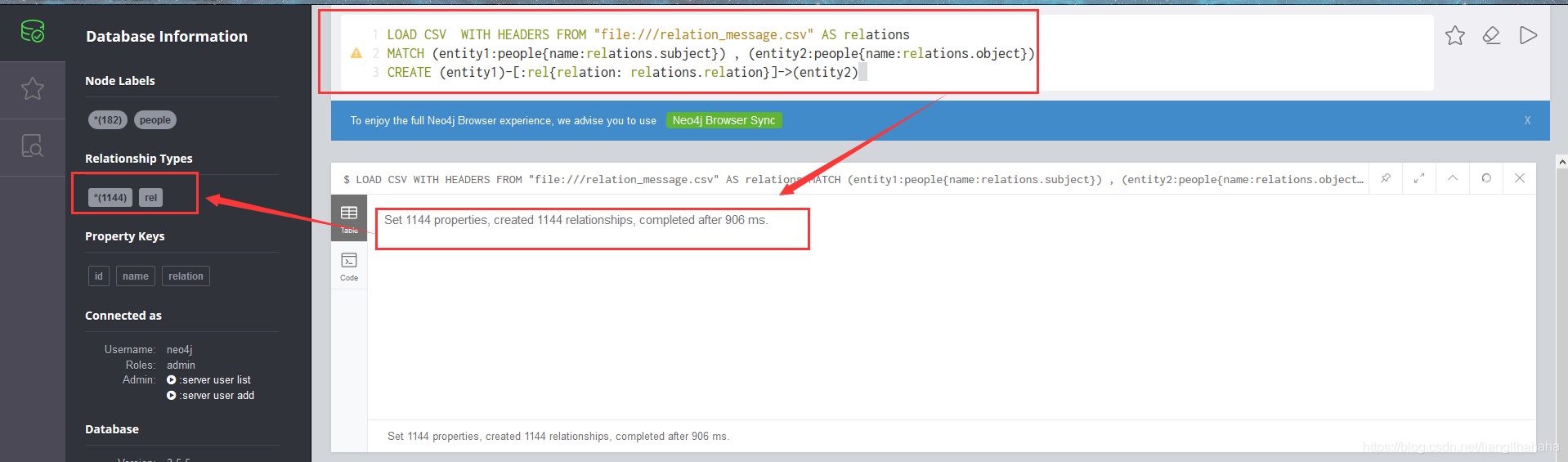
The screenshot dataset produced 1,144 relationships. If a source or target key is missing, MATCH will find no endpoint and that row will create no relationship. Comparing imported counts with the input files helps reveal missing rows.
These CREATE queries are intended for a one-time import into an empty project database. Repeating them creates duplicates. For a repeatable import, use a stable character key, an appropriate uniqueness constraint, and MERGE with a defined relationship identity. The MERGE documentation explains those semantics.
4.3 Display characters and relationships
Query the imported graph:
MATCH p=(:people)-[:rel]->(:people)
RETURN p;
Neo4j Browser may insert a query limit or apply a visualization result limit. Remove a query’s LIMIT 25 when you want all matching paths from this small dataset, and check Browser’s display settings if the visualization still shows fewer results.
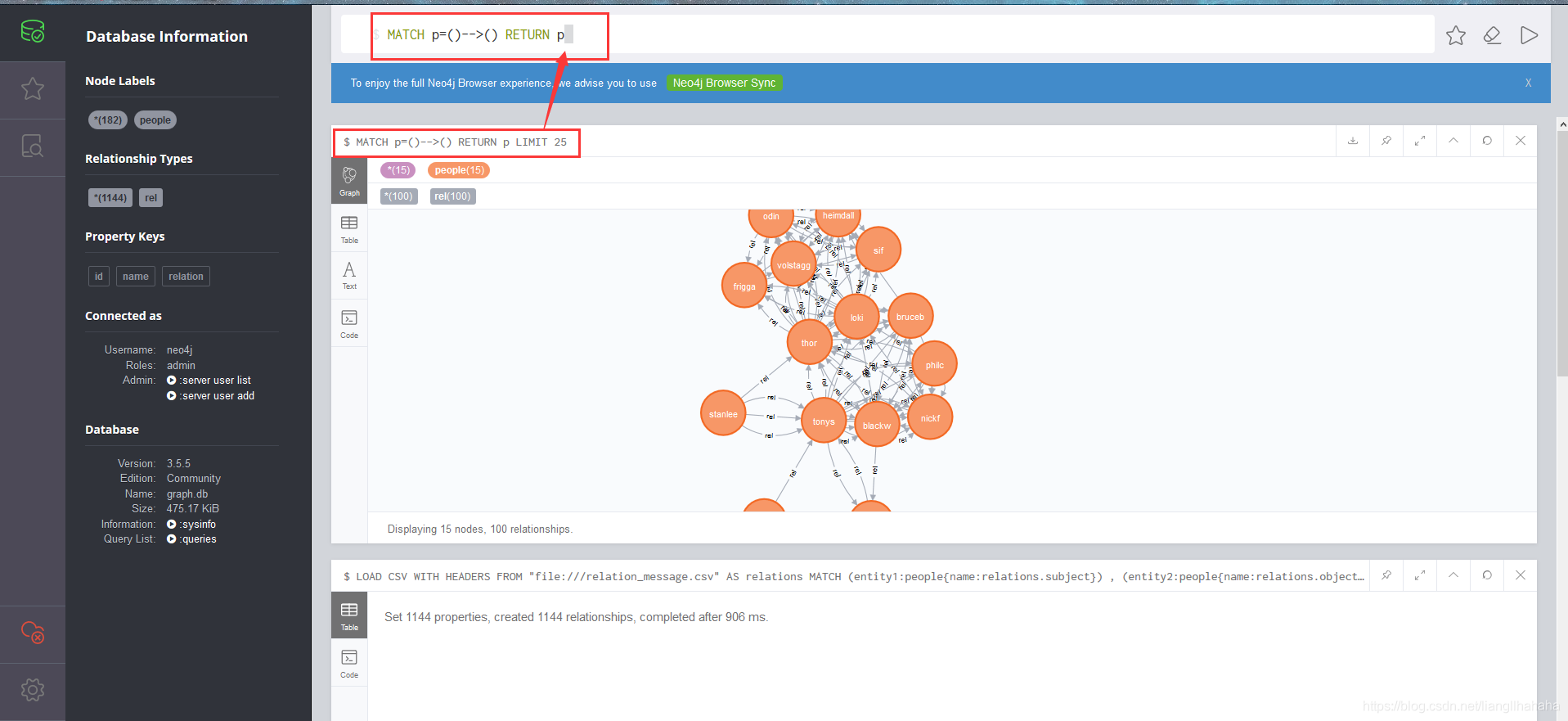
Run the query to display the graph:
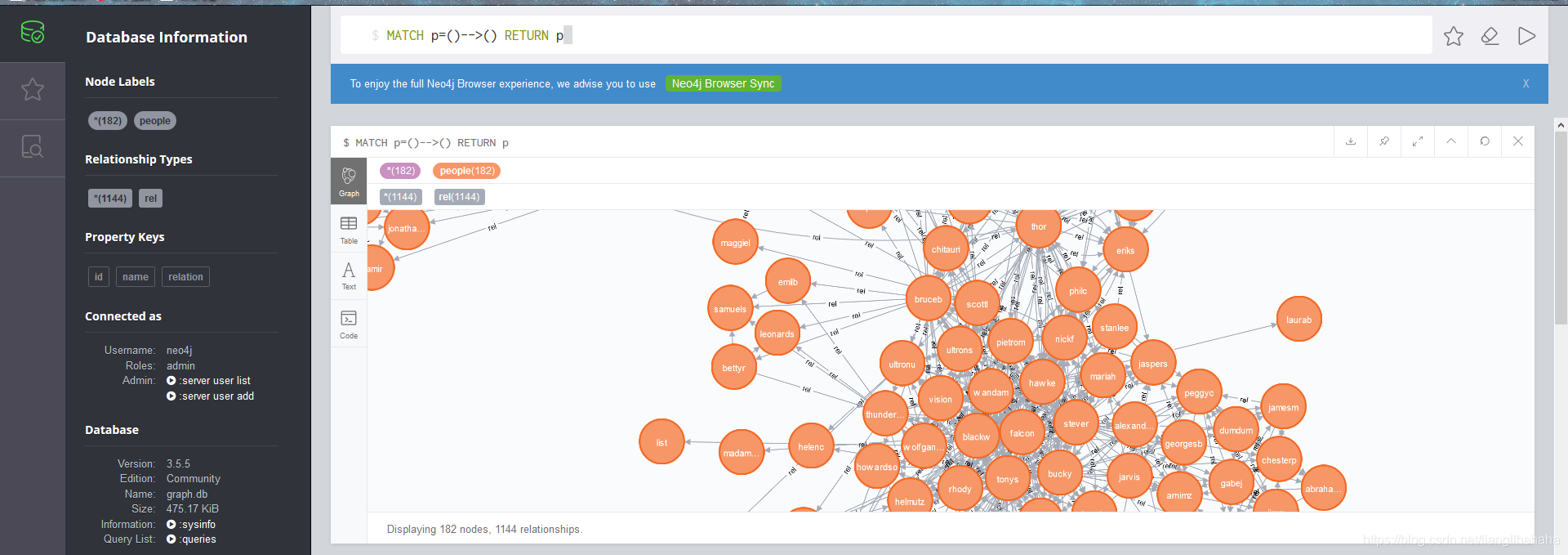
Expand the result to full screen when exploring the connections:
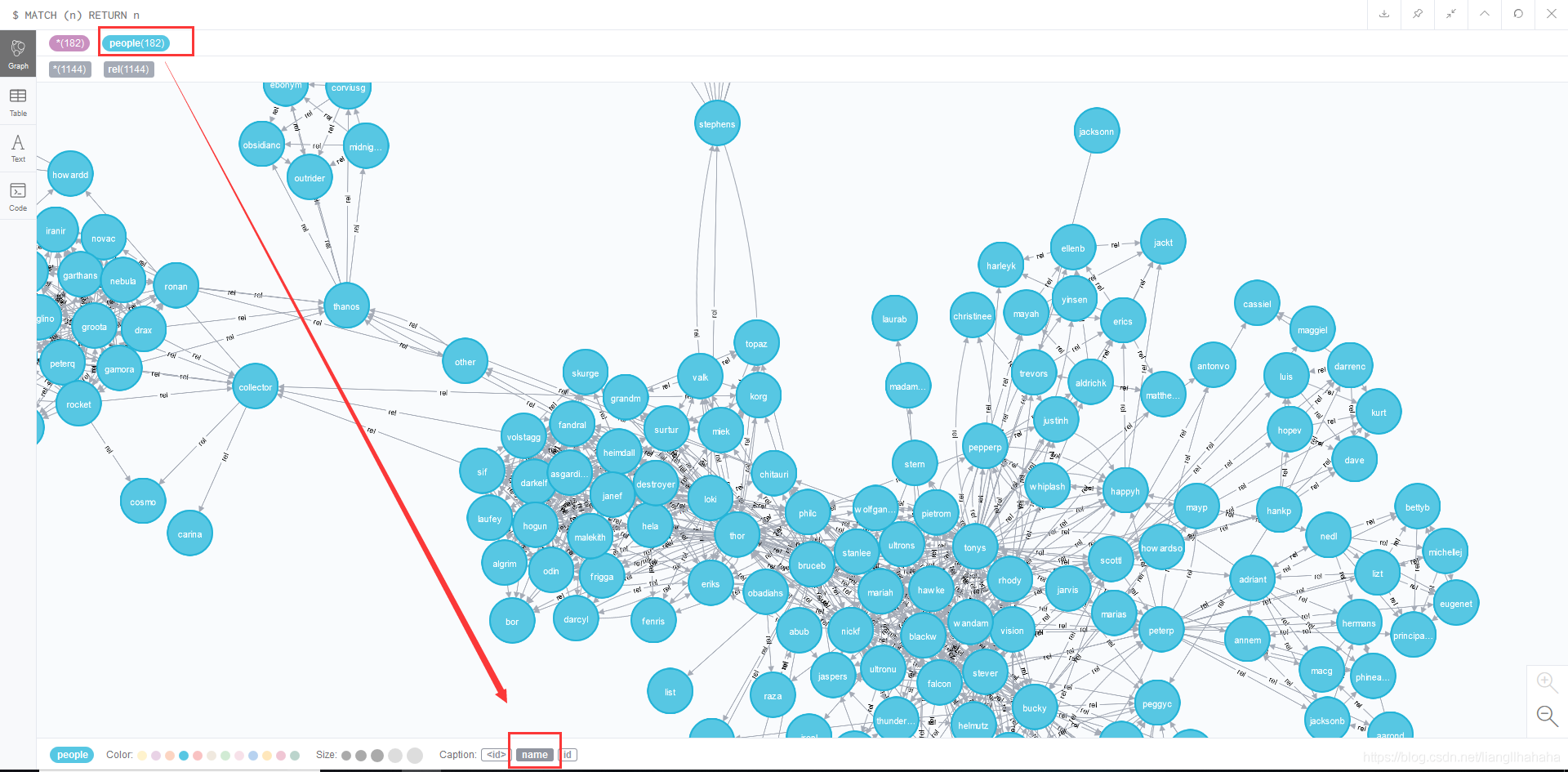
In the graph styling controls, select people and use the name property as the node caption:
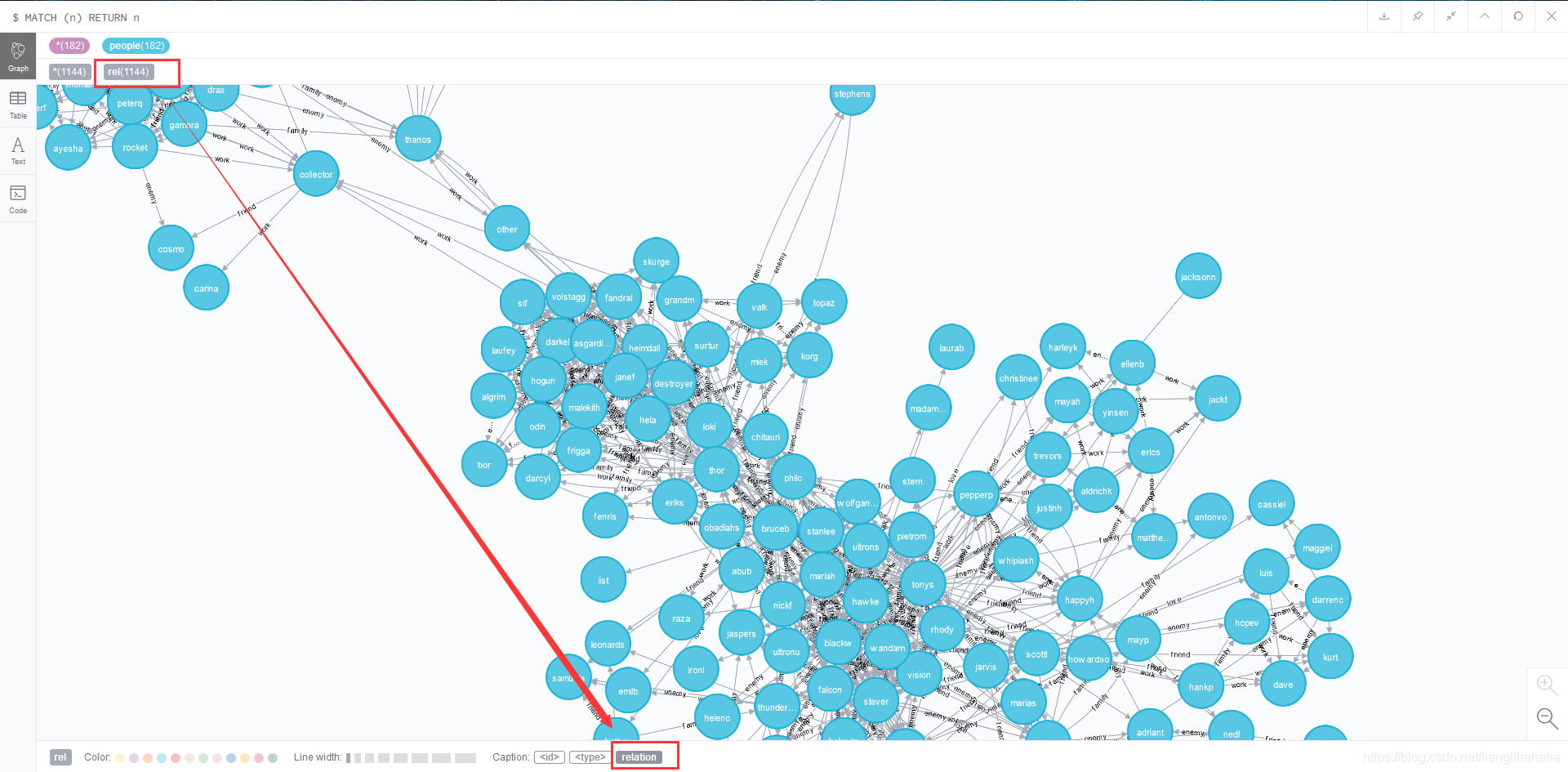
Select the rel relationship type and use its relation property as the relationship caption. This makes friendship, family, work, and other categories visible on the edges. The location of the styling controls depends on the Browser version.
4.4 Filter the relationships
Find Tony Stark’s outgoing friendships:
MATCH p=(n:people {name: 'tonys'})-[:rel {relation: 'friend'}]->()
RETURN p;
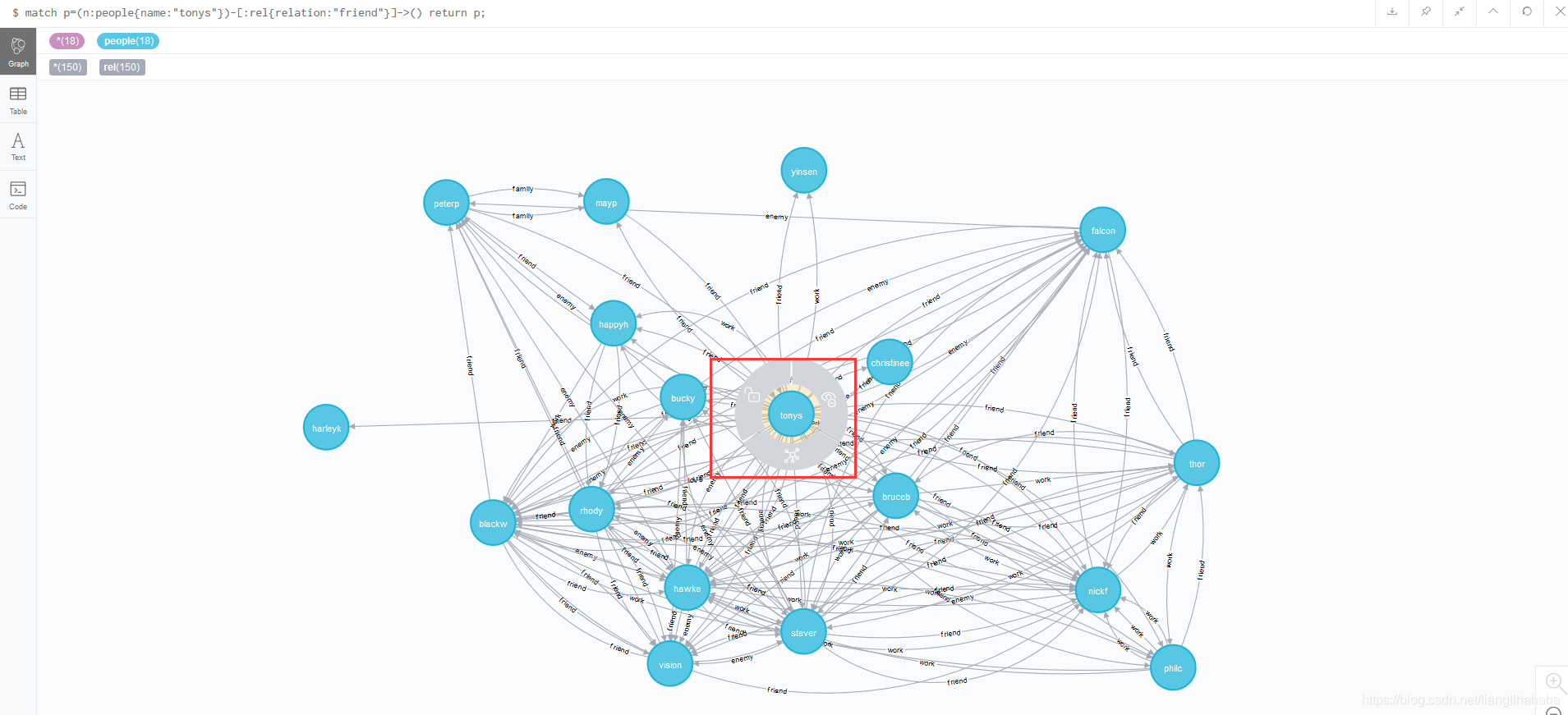
The character keys include thor for Thor, stever for Captain America, blackw for Black Widow, vision for Vision, peterp for Spider-Man, and bruceb for the Hulk.
Find relationships recorded as love from Captain America:
MATCH p=(n:people {name: 'stever'})-[:rel {relation: 'love'}]->()
RETURN p;
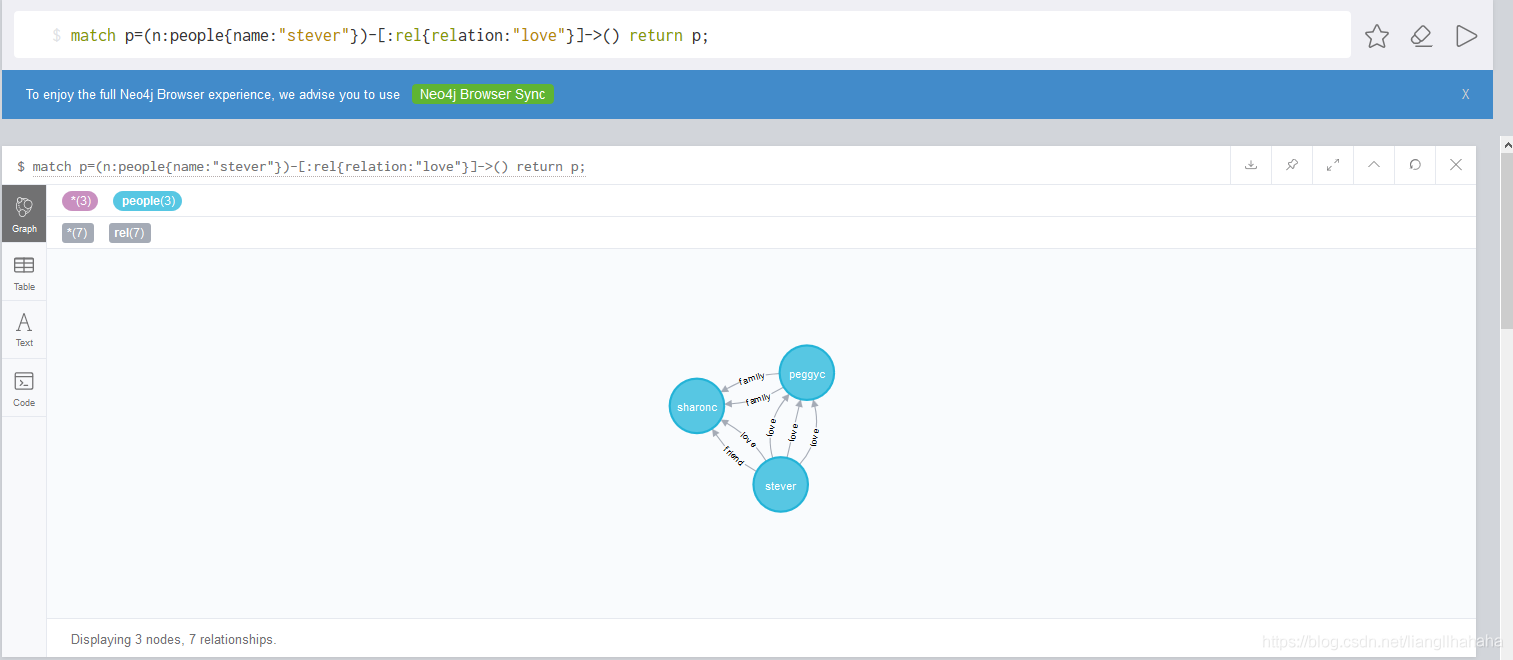
Both queries follow the stored direction of the edges. Replacing -> with - searches either direction when that better matches the question. Changing the starting character or the relation property gives a straightforward way to explore the rest of the graph.